How to Set Up a Padbol Scoreboard on Your TV
You don't need a dedicated LED board to give a padbol court a live score. With Multi Score Screen, a padbol scoreboard runs on an ordinary TV or display and the score is entered from a phone. This guide walks through the setup from the TV on the wall to the first test rally.
If you are equipping several courts, or courts for other sports too, our general TV scoreboard setup guide covers the same checks in more detail.
What you need
- A TV or display at the court. Any modern TV works; it just needs to be large enough to read from the far side of the court.
- An internet connection. Venue Wi-Fi is enough. The TV and the phone don't need a cable between them.
- A way to open the scoreboard on the TV: a streaming app or a device connected to the HDMI input.
- A phone to enter the score.
- A Multi Score Screen account and a license for the court.
There is nothing else to buy or install on the court.
Step 1: Place the TV where everyone can see it
Padbol courts are compact and enclosed by walls, so think about two audiences: the players on court and the people outside the glass.
- Mount the screen at the end of the court or above the entrance, high enough to stay clear of play.
- Avoid placing it where floodlights or windows reflect directly off the screen.
- If spectators mostly watch from a café or seating area, angle the screen so they can see it too.
- Make sure there is a power socket and good Wi-Fi coverage at that spot.
Step 2: Connect the TV
Connect the TV to the venue's Wi-Fi and check that the connection is stable at the mounting position. Then decide how the scoreboard will be opened: through a streaming app on the TV or through a device on the HDMI input. Either way, the TV only displays the score; all scoring happens on the phone.
Step 3: Create your club and add the padbol court
- Create your club account and follow the setup checklist.
- Add the court, give it a clear name (for example "Padbol 1") and choose padbol as its sport.
- Choose the court mode: rental for bookings, lesson for coaching, tournament for events.
The court name appears on the screen and on the Court Status Board, so use the same names your players see in your booking system.
Step 4: Activate the court's license
Enter the license key sent to you by email to activate the court. Each court has its own license; the pricing page explains which plan covers how many courts.
Step 5: Open the scoreboard and choose a theme
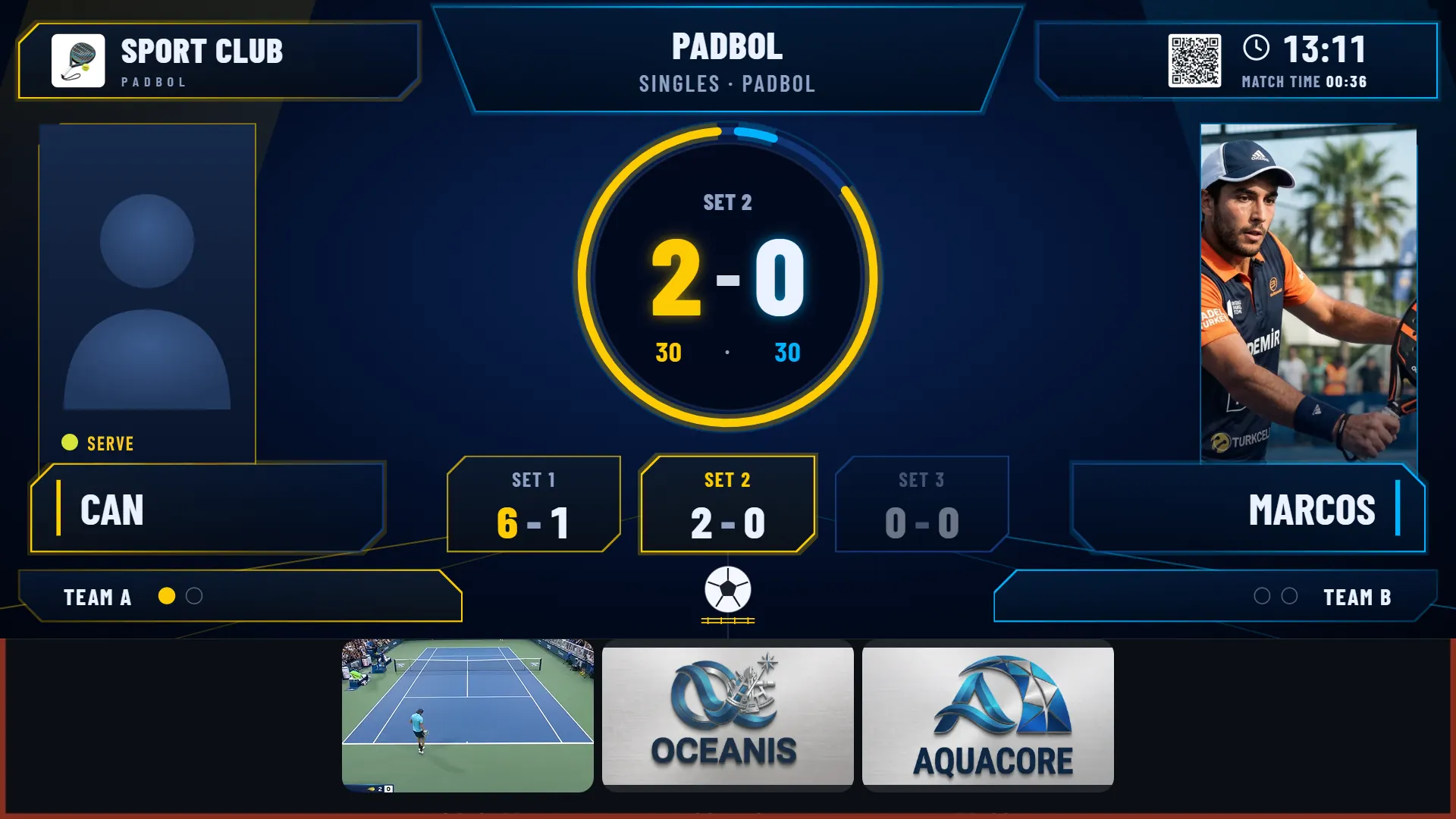
Open the scoreboard on the court TV and pick a theme. The screenshot at the top of this page shows the Neon theme, with sets, games, the current point, the serving side, match time, player photos and a sponsor strip. You can also choose Platinum, Classic, Gold, Broadcast or Pro, and change it later at any time.
Step 6: Play a test rally from a phone
Before the first booking, play a short test:
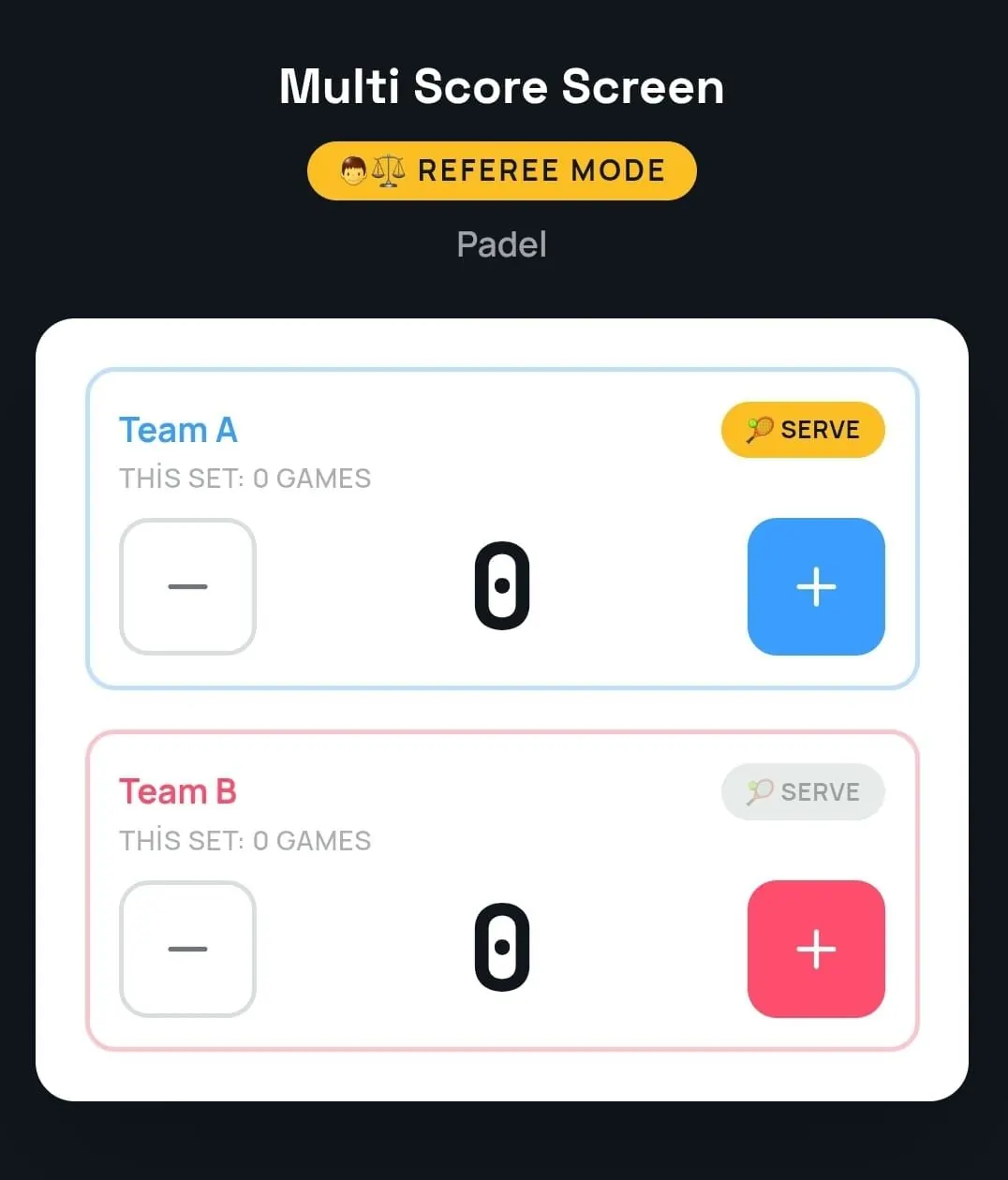
- Scan the join QR code on the court TV and enter the PIN, or open the match in referee mode on a staff phone.
- Add a few points to each side and check that the TV updates instantly.
- Undo a point to see how corrections work.
- Walk around the court and check that the score is readable from every position and from outside the glass.
Step 7: Add sponsors and tell your players
Upload sponsor logos for the strip under the score and the full-screen ads shown while the court is empty. Then let your players know how it works: a short sign next to the court ("Scan the QR on the screen to start your match") is usually enough.
Troubleshooting
- The screen doesn't update: check the TV's Wi-Fi connection. Scoring keeps working on the phone during short drops and syncs when the connection returns.
- The score is hard to read: try a theme with larger numbers, or move the screen closer to the playing area.
- Players can't join: make sure they scan the current QR code; the code and PIN refresh after every match.
For more fixes, see our scoreboard troubleshooting guide.
Frequently asked questions
Can I use the TV the court already has?
Yes. Multi Score Screen runs on the TV or display a court already has, as long as it has an internet connection and a streaming app or HDMI input.
How long does the setup take?
Most courts are live within minutes once the TV is mounted and connected.
Do I need sensors on a padbol court?
No. The score is entered from a phone, by the players or by a referee, so no sensors are needed.
Can the same TV show other sports?
Yes. Each court has its own sport, and the same account covers eight sports, including padel. Read the padbol scoreboard guide for everything the screen can do.
Ready to try it? Request a demo and we will set up a live padbol scoreboard on your court TV with you, or read why a padbol scoreboard is important for your players and sponsors.
Explore the Multi Score Screen digital scoreboard for padel, tennis, pickleball and 5 more sports →